 Mir
Mir
Cockpit
Cockpit is Mir’s web interface — a browser-based view of the platform with no separate deployment required.
Dashboards
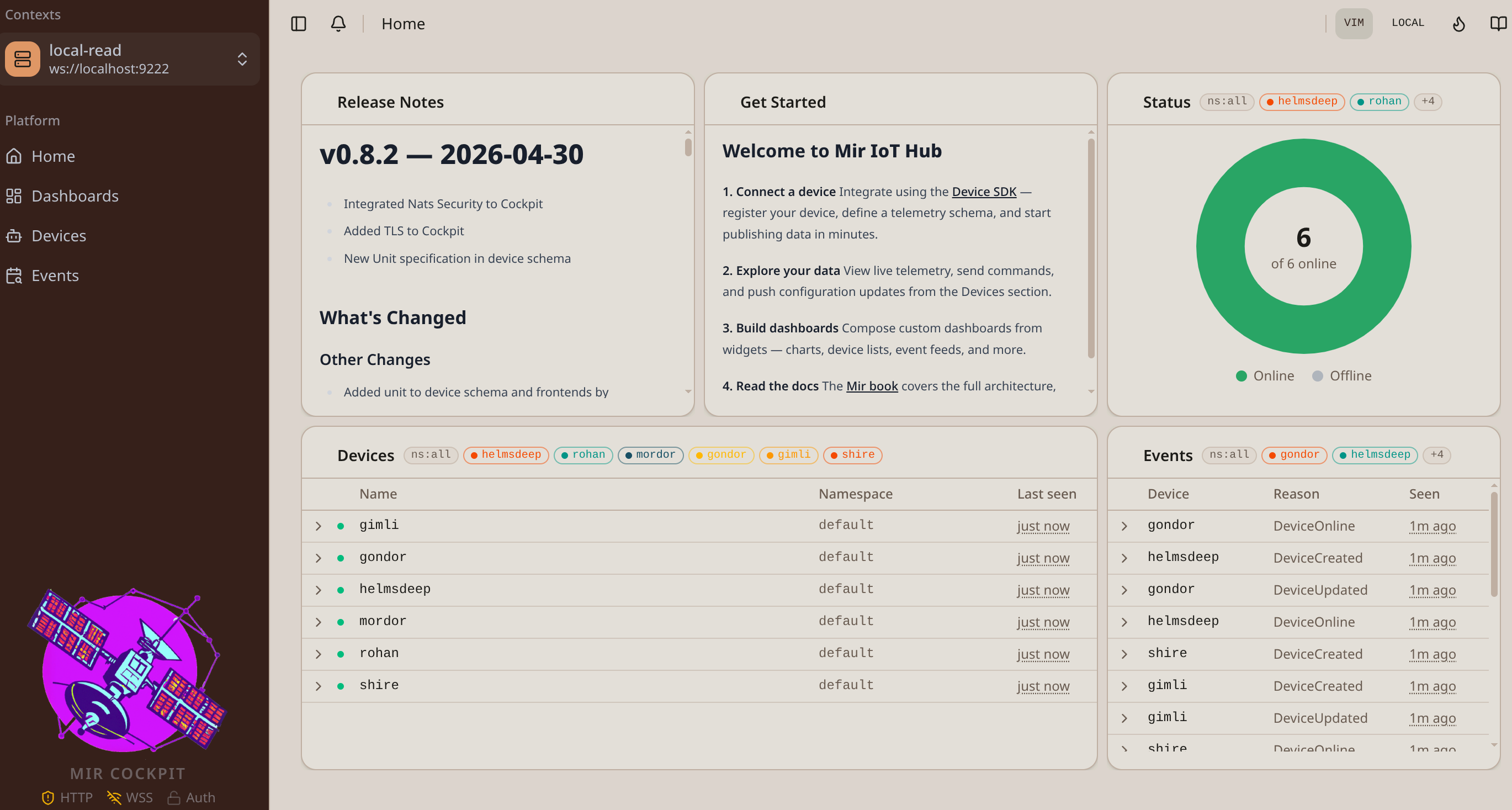
Fully customizable widget grid — drag, resize, and arrange tiles freely. The home page shows a pre-configured welcome dashboard; more can be created from the Dashboards section.
| Layout | Drag-and-drop widgets, read-only / edit mode toggle |
| Refresh | Auto-refresh with configurable interval |
| Persistence | Layouts saved across sessions |
Device Fleet
Live table of all registered devices. Click any device to open its detail view across five tabs:
| Tab | Description |
|---|---|
| Overview | Digital twin — namespace, ID, labels, desired vs. reported properties |
| Telemetry | Interactive charts with field selector, time presets (1 min → 90 days), brush zoom, split views, data table, and Grafana link |
| Commands | Send commands with a syntax-highlighted JSON editor, dry-run validation, and a per-status response panel (SUCCESS ERROR VALIDATED PENDING) |
| Configuration | Edit config schemas, compare reported vs. desired values, dry-run before applying |
| Events | Device-scoped log of all interactions and state changes |
Events
System-wide log of all platform activity — connections, commands, config changes, schema uploads. Supports pagination (up to 500 per page), time-range filtering, and UTC / local time toggle.
Interface
| Context Switcher | Switch between Mir deployments from the header — one Cockpit can reach multiple servers |
| Themes | 7 built-in themes: Dawn, Rust, Mocha, Dusk, Aurora, Midnight, Hacker |
| VIM Mode | VIM keybindings for JSON payload editors — pass a small proficiency test to unlock (hint: :q) |
| Time Display | Toggle UTC / local time for all timestamps via the clock icon |
| Docs Drawer | In-app documentation covering Cockpit, CLI, and SDK development |
🚀 Operating Cockpit
Accessing Cockpit
Have a Mir deployment ready:
Once mir is running, open your browser at the configured port:
http://localhost:3015
Cockpit is a single-page application built with Svelte.
🔌 How It Connects
Cockpit does not connect to NATS directly over TCP — it uses a WebSocket connection defined by webTarget in your CLI contexts config (~/.config/mir/cli.yaml). This allows the browser to reach the NATS message bus through a standard WebSocket port.
contexts:
  - name: local
    target: nats://localhost:4222      # used by the CLI
    webTarget: ws://localhost:9222     # used by Cockpit (browser)
    grafana: localhost:3000
| Key | Description |
|---|---|
target | NATS TCP URL — used by the CLI and the Mir server itself |
webTarget | WebSocket URL — used by the Cockpit browser client |
grafana | Grafana base URL — powers “Open in Grafana” links on the telemetry page |
If
webTargetis not set, Cockpit falls back totargeton port9222.
Port
9222is the NATS WebSocket listener — it is configured on the NATS server side, not by Cockpit itself.
⚙️ Configuration
Cockpit is configured in two files.
Server Config
Controls the HTTP server and Cockpit service behaviour:
mir:
  http:
    port: 3015          # port Cockpit is served on
    tlsCert: ""         # path to TLS certificate (enables HTTPS)
    tlsKey: ""          # path to TLS private key
  cockpit:
    enabled: true
    allowedOrigins: []  # CORS allowed origins (empty = allow all)
    githubOwner: MaxThom
    githubRepo: mir
Contexts Config
Defines the servers Cockpit exposes to the browser:
logLevel: info
currentContext: local
contexts:
  - name: local
    target: nats://localhost:4222
    webTarget: ws://localhost:9222
    grafana: localhost:3000
In Docker, these map to the two mounted config files:
./mir-compose/mir/local-config.yaml→ server config./mir-compose/mir/local-contexts.yaml→ contexts config
See Docker Authentication for the full setup flow with authentication.
See Server-Only TLS for HTTPS and WSS setup.